


Scratch
3.81.03K Reviews
App Specs
- Version
- Varies with Device
- Updated On
- License
- Free
- Downloads
- 1,000,000+
- Developer
- Scratch Foundation
- Categories
- Education
- Platform
- Android, iOS
Screenshots
 Analysis by AppCompare
Scratch is the kind of learning app I can recommend when someone wants to try programming without being pushed straight into typing unfamiliar code. I found its visual approach much less intimidating than a traditional coding editor: instead of starting with punctuation-heavy commands, you build stories, games, and animations by arranging blocks. That makes the first few minutes feel approachable, especially for children, families, and complete beginners who learn better by seeing an action take shape.
It is a free education app from Scratch Foundation, aimed at everyone rather than a narrow age group. The community around it is substantial, with more than a million installs and an average rating of 3.8 from roughly sixteen thousand ratings. Those figures suggest a widely used learning tool with plenty of interest, but they also hint that it is not a perfect fit for every device, learner, or expectation. My experience was most positive when I treated it as a creative introduction to programming, not as a complete replacement for a professional development environment.
How Scratch feels to use for different learners
I find Scratch’s visual approach lands differently depending on how someone likes to learn: blocks can make cause and effect easier to grasp, while a crowded project may ask more of a learner’s attention and coordination. In the next section, I’ll look at how to adapt a first project to the person using it, so the creative freedom feels inviting rather than overwhelming.
Readable ideas, visual navigation, and a gentle first step
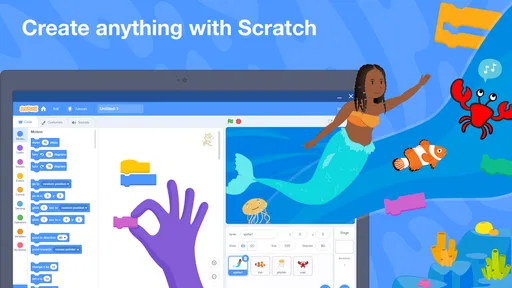
The strongest part of Scratch is the way it turns programming logic into something visible. A learner can choose a character, add a backdrop, and assemble instructions that describe what should happen. The result is easier to follow than a blank text editor because the blocks show their role through shape, color, and wording. If a child wants a character to move, speak, or react, the relationship between the instruction and the result is immediate.
I especially like this for learners who become discouraged by spelling mistakes or missing symbols. A visual block system removes much of that early friction. It does not remove the need to think, though. Users still have to decide what should happen first, what should repeat, and what should trigger an action. That balance is important: the interface feels playful, but the underlying habits are genuinely useful for understanding sequences, conditions, loops, events, and debugging.
Navigation is clearest when the learner has a specific project in mind. “Make a character tell a joke” is easier to act on than “learn programming.” Starting with a tiny goal also reduces the chance of getting lost among creative possibilities. I would suggest that a parent or teacher first ask the learner to make one character move, then add a response to an input, and only afterward introduce a larger story. This staged approach makes the workspace feel manageable instead of crowded.
For younger users, the visual result provides helpful feedback even when the code is not yet elegant. They can see that an instruction worked, notice when it did not, and change one block at a time. For older beginners, the same process offers a gentle way to understand programming concepts before moving to a text-based language. The visual blocks are not merely decoration; they make cause and effect easier to inspect.
Worth Reading Before You Choose

Flipboard Shows What News Apps Must Do Beyond the Feed

Switching to Android Auto Means Rethinking Your Driving Routine

Google Calendar Makes a Crowded Week Easier to Manage

Ludo King Makes the Most of the Minutes Between Plans

Baby Panda World Brings Quick Play to Modern Phones, but Its Game Library Feels Busy

ESPN’s Live Game View Makes Following Close Games Easier
Where readability helps, and where it can become busy
Scratch is readable in a practical, visual sense, but readability is not identical for everyone. A learner who benefits from color and spatial grouping may find the blocks welcoming. Someone who prefers a quiet, linear interface may find a project with many characters, scripts, and controls difficult to scan. As a project grows, the original simplicity can give way to a busy workspace where it takes effort to remember which instructions belong to which character.
This is one reason I would not hand the app to a beginner and simply say, “Explore.” I would offer a short challenge and encourage them to keep each script small. Naming characters clearly, testing after every few changes, and avoiding one enormous chain of instructions are useful habits. They make the project easier to understand and also help when another person needs to review it.
The community element adds inspiration, because users can discover projects made by people around the world. That can be motivating for a learner who needs examples before inventing something independently. At the same time, browsing other creations can distract from the learning goal. A child may spend more time watching or remixing projects than understanding why they work. I see the community as most valuable after a learner has made a small original project, not as the only activity.
For adults helping a child, the interface also creates a useful conversation. Instead of correcting every mistake, I can ask, “What did you expect this block to do?” or “Which part should happen first?” Those questions encourage reasoning rather than imitation. The app supports that style of learning well, provided the adult resists turning every project into a lesson with rigid instructions.
Motor and sensory considerations in everyday use
A block-based system can reduce the precision required for typing, which is a meaningful advantage for users who find a keyboard difficult or tiring. Selecting and arranging visual pieces may feel more approachable than entering long lines of code. It also helps learners who make frequent typing errors, because the available blocks guide the construction of an instruction instead of requiring exact syntax from memory.
That benefit has limits. Building a project still involves selecting items, dragging or arranging blocks, navigating menus, and keeping track of several visual elements. A user with limited fine-motor control may find repeated positioning tiring, particularly in a detailed project. The app’s visual nature should therefore not be mistaken for automatic accessibility. A larger screen, a stable device position, and a slower pace may make a considerable difference, but the best setup depends on the individual.
For sensory preferences, Scratch can be rewarding because the learner controls the content and can create a calm animation, a simple story, or a quiet logic exercise. It can also become visually intense when a project contains many moving elements or rapid changes. I would encourage users who are sensitive to motion or visual clutter to begin with one backdrop, one character, and a small number of actions. Keeping the scene deliberate makes it easier to concentrate on the programming idea.
Sound is another area where a project can become more demanding than its code suggests. A learner may add audio for a story or game, but someone who is sensitive to unexpected sound may prefer to test with audio reduced or absent where possible. This is not a reason to avoid the app; it is a reminder that creative freedom can produce very different sensory experiences. A teacher should preview a shared project before asking a group to use it.
The app can also support learners who understand concepts better through movement and visible outcomes than through spoken explanation. A character changing position or responding to an event gives an immediate demonstration. However, a learner who needs highly linear instructions may benefit from a printed or spoken plan alongside the app. Scratch offers the workspace, but the teaching method around it still matters.
Using it at home, in class, or with limited attention
Scratch works particularly well in short home sessions. A child can open a project, make one change, test it, and stop with a visible result. That is more satisfying than ending a lesson halfway through a long text-based exercise. I can imagine using it after school for twenty minutes: first create a backdrop, then make a character move, and finally add a simple response. The session has a clear beginning and end without requiring a large commitment.
In a classroom, the app is useful for collaborative explanation even when each learner works at a different pace. One student can focus on animation, another on story structure, and another on the logic behind interactions. The teacher can ask everyone to demonstrate one behavior rather than grading only the finished appearance. This is important because a polished-looking project is not necessarily the one with the clearest programming decisions.
It is also a good choice for family learning because adults do not need to be programmers to participate. A parent can help plan the story, test the sequence, or ask why an action happened. That shared activity is more productive than taking over the controls. I would let the learner make the decisions and use questions to guide troubleshooting.
For a user with limited attention, the open-ended nature of Scratch is both helpful and risky. It permits small, rewarding tasks, but it also offers many possible directions. I recommend setting a single outcome before starting: animate a greeting, create a short conversation, or make an object react. Saving the more ambitious ideas for later prevents the first session from becoming an unfinished collection of experiments.
The app is less suitable when the main requirement is fast, professional production. If I needed to build a complex software product, manage a large codebase, or work with advanced developer tools, I would choose a conventional programming environment. Scratch is designed around exploration and creative learning. Its simplicity is a strength for beginners, but it becomes a boundary for experienced developers.
Three practical workflows that make the experience better
My first useful workflow is to separate the story from the mechanics. Before arranging blocks, I would write down three moments: what starts the project, what the character does, and how the scene ends. This small plan prevents a common beginner problem in which the project contains many disconnected actions. It also makes the app more approachable for learners who struggle with open-ended tasks.
The second is to test in layers. I would make the character move first, run the project, and only then add speech or sound. After that, I would introduce a response or repeated behavior. Testing each layer makes mistakes easier to locate. When everything is added at once, a learner may know that something failed but not know which instruction caused it.
The third is to use remixing as analysis rather than copying. A learner can look at an existing creation, identify one behavior, and rebuild that behavior in a new project with different characters or a different story. The important question is not “Can I make mine look the same?” but “Which instruction makes this happen?” That turns community browsing into a practical lesson in reading code.
A fourth habit is particularly useful for inclusive group work: ask learners to explain their project in more than one way. They might show the finished animation, describe the sequence aloud, and point to the blocks responsible for one action. This gives different learners a chance to demonstrate understanding through visual, spoken, or hands-on explanation. It also reveals whether the project works because the learner understands it or simply assembled pieces by trial and error.
What may still get in the way
The biggest barrier is not the basic concept but the amount of choice. A beginner can move from a simple animation into characters, scenes, sound, and community projects very quickly. Without a clear task, that freedom can feel like pressure. Learners who need predictable routines may prefer a guided course or a teacher-prepared sequence before using the app independently.
Another limitation is that visual programming can hide some of the details that matter later in text-based coding. Scratch teaches valuable logic, but it does not require the same attention to spelling, punctuation, file structure, or written syntax. I would present it as a bridge into programming, not as the final destination for someone whose goal is software development.
Projects can also become difficult to maintain when the learner keeps adding instructions without reorganizing them. This is where an adult mentor or experienced student can help by encouraging smaller scripts and clear purposes. The app is forgiving when experimenting, but it does not automatically teach good project organization. Those habits have to be introduced through practice.
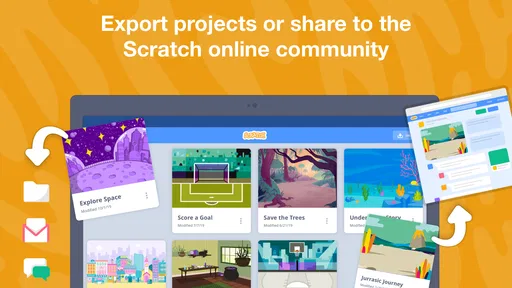
Sharing creations brings motivation, yet it also means the user is entering a social creative space rather than working in complete isolation. Families and teachers should decide what kind of browsing and sharing is appropriate for the learner. A child who is not ready for community interaction may be better served by using the creative tools with adult guidance and focusing on private practice.
There is also a difference between being able to open the app and being able to use it comfortably. Device size, touch accuracy, visual preferences, attention span, and prior experience all affect the experience. Someone who finds dense screens tiring may need frequent breaks. Someone who has difficulty with dragging may need another input method or help arranging blocks. I would test the app with the actual learner rather than assuming that an education label guarantees a comfortable fit.
Who should choose Scratch, and who should look elsewhere?
I think Scratch is a strong choice for children discovering programming, families looking for a creative learning activity, and teachers introducing logic through stories or games. It is also suitable for older beginners who want to understand programming ideas without first wrestling with syntax. The free price removes an important barrier, especially for schools and households that want to experiment before committing to a paid course or tool.
I would be more cautious about recommending it to someone who already wants to build serious applications, learn a specific professional language, or work mainly through a keyboard. That user may outgrow the block system quickly. A text editor, a structured coding course, or a more specialized development environment would offer a better next step. Scratch still has value as a way to plan logic, but it would not be my main recommendation for advanced work.
Compared with video lessons, Scratch gives immediate hands-on feedback instead of asking the learner to watch first and practice later. Compared with worksheet-based lessons, it makes the result interactive and personal. Compared with text-based coding platforms, it removes much of the early syntax burden. The trade-off is that it provides less direct preparation for the exact mechanics of professional programming. Each alternative is better for a different goal, and Scratch wins when the priority is confidence, experimentation, and visible cause and effect.
My inclusive verdict after using it
Scratch succeeds because it gives beginners a way to make something meaningful before they understand every programming term. I found its visual blocks, immediate results, and creative projects more welcoming than a blank coding screen. It can support different learning styles and reduce some typing-related obstacles, but it should still be introduced thoughtfully for users who experience visual clutter, motor fatigue, sensory sensitivity, or difficulty with open-ended choices.
The app is free, rated for everyone, and developed by Scratch Foundation, which makes it easy to suggest as a low-risk starting point. Its community reach is reflected in more than a thousand written reviews and over a million installs, while the 3.8 average reminds me to keep expectations realistic. It is useful, but the best experience depends on guidance, a suitable device, and a project sized to the learner’s abilities.
I would recommend Scratch as a flexible first doorway into programming, especially when inclusion means adapting the activity rather than expecting every learner to use the interface in exactly the same way. Start with one small creation, keep the visual workspace organized, test each behavior separately, and treat the community as a source for studying ideas rather than simply collecting finished projects. With that approach, the app can turn programming from an intimidating subject into something a learner can see, change, and explain in their own way.
Pros
- Simple block-based coding makes programming approachable for beginners.
- Creative projects can be shared with a large
- active community.
- Works well for learning logic
- sequencing
- and problem-solving skills.
- Supports animations
- games
- stories
- music
- and interactive experiments.
- Free access with no subscription required for core features.
Cons
- Some advanced programming concepts are difficult to represent with blocks.
- Community content quality varies
- so projects may need careful evaluation.
- Large projects can become difficult to organize and troubleshoot.
- Requires internet access for many sharing and community features.
- The mobile experience can feel cramped when editing complex projects.
FAQs for Scratch
What is Scratch, and who is it designed for?
Scratch is a free, beginner-friendly programming platform created by the MIT Media Lab. It lets users build interactive stories, animations, games, music projects, and simple simulations by joining colorful coding blocks instead of typing complex programming syntax. It is mainly designed for children and beginners, although teachers, parents, and anyone learning programming fundamentals can also use it.
Can Scratch be used on Android and iOS devices?
Scratch is primarily designed for web browsers and computers, where creating projects is generally more convenient because of the larger screen and keyboard or mouse controls. On mobile devices, you may be able to view and interact with Scratch projects through a compatible browser, but the full editing experience can be limited. Check the official availability and device requirements before downloading anything claiming to be an official app.
Does Scratch require an internet connection?
An internet connection is useful for accessing the Scratch website, sharing projects, exploring the community, and viewing other creators’ work. Depending on the version and device, some project creation may be possible offline, but online features such as saving to an account, publishing, commenting, and cloud-based collaboration require connectivity. Availability of offline tools can vary by platform.
Is Scratch safe for children to use?
Scratch includes features intended to support a child-friendly creative community, including project reporting and moderation tools. However, parents and teachers should still discuss online safety, privacy, respectful communication, and responsible sharing with younger users. Children should avoid posting personal information, use an appropriate username, and have an adult review account settings and community interactions when necessary.
Is Scratch completely free, and are there in-app purchases?
Scratch is available as a free platform for creating, playing, and sharing projects, and its core programming tools do not require a subscription. Users can access a large library of community-made games, animations, and educational examples without paying. Be cautious with unofficial mobile applications or third-party downloads, since they may include advertisements, purchases, or features that are not part of the official Scratch service.


